Having trouble printing? Follow the steps below to resolve common printing issues.
iPad Asks for Sign In When Printing
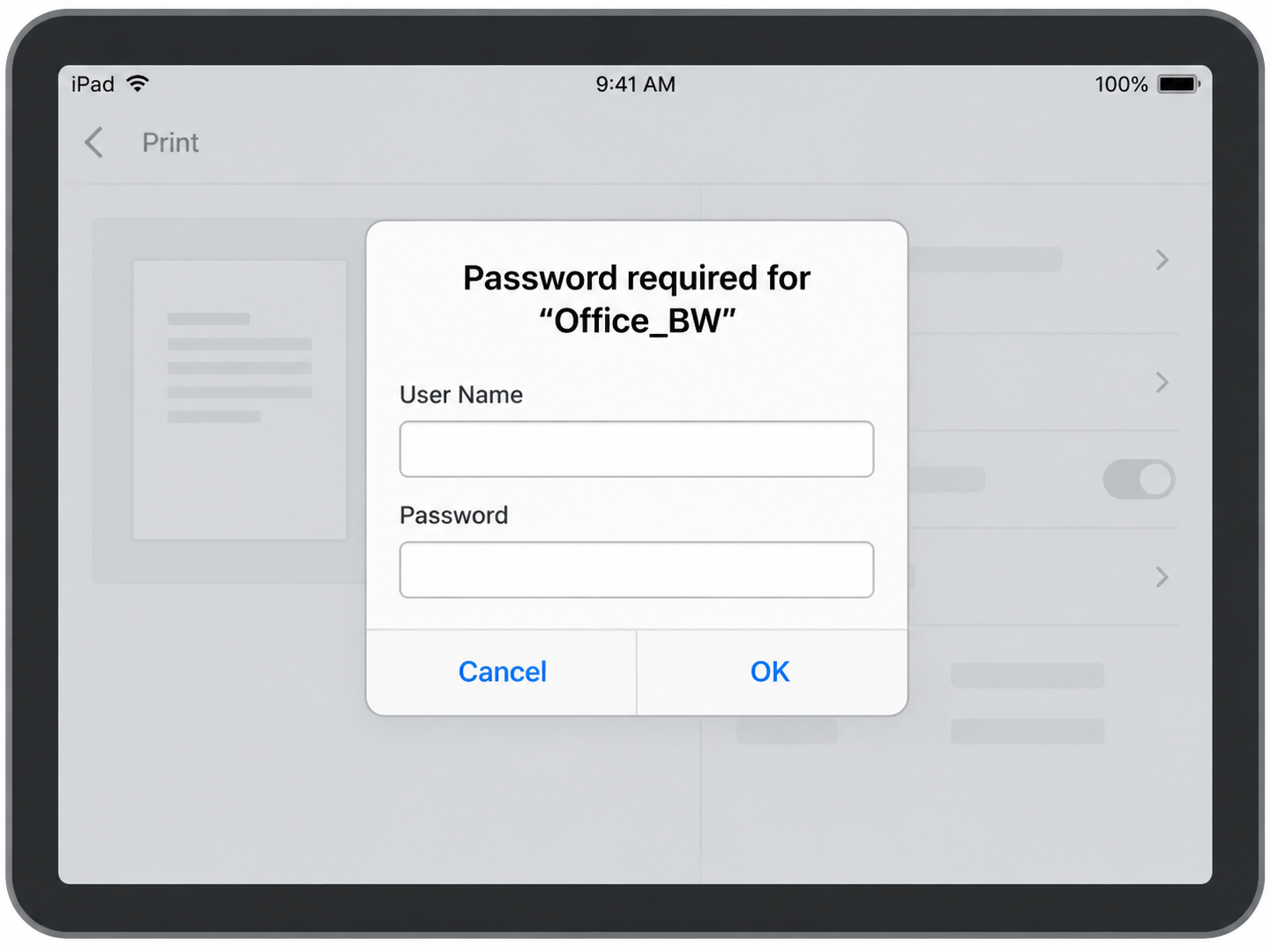
PaperCut may ask you to sign in when printing from your iPad.
Enter your school Google Workspace username and password.
Tap OK to continue printing.
If your credentials are rejected, double check your username and password.
If the issue continues, submit an IT support ticket.
Note: Your iPad should normally remember your printing credentials after a successful sign in.
Printer Is Missing
If your printer doesn't appear in the list:
Make sure your device is connected to the Administration Wi-Fi.
Close and reopen the app you're printing from.
Try printing again.
If the printer is still missing, restart your device.
Print Job Doesn't Print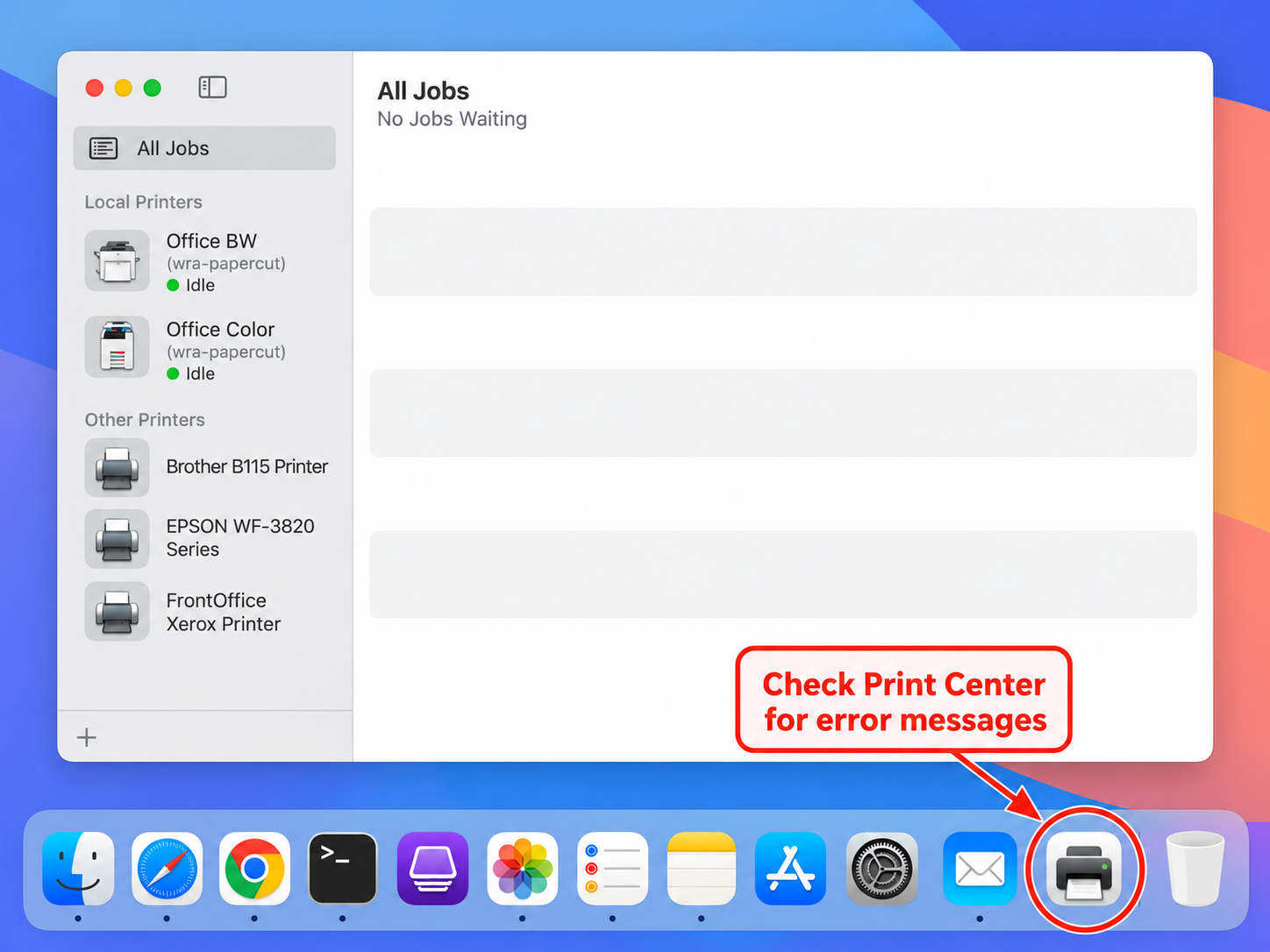
If you submitted a print job but nothing happened:
Check that you selected the correct printer.
Try the same print job using a different browser
Check the printer for error messages, or pending print jobs.
Try printing again.
Note: If multiple print jobs are queued and pending, delete old print jobs before trying again.
Still Having Trouble?
Submit a ticket at Support@wrak8.org with the following information:
Your device (iPad or MacBook)
Printer name
Description of the problem
Any error messages you received
Was this article helpful?
That’s Great!
Thank you for your feedback
Sorry! We couldn't be helpful
Thank you for your feedback
Feedback sent
We appreciate your effort and will try to fix the article