Apps available to you can be installed through the Mosyle Manager app.
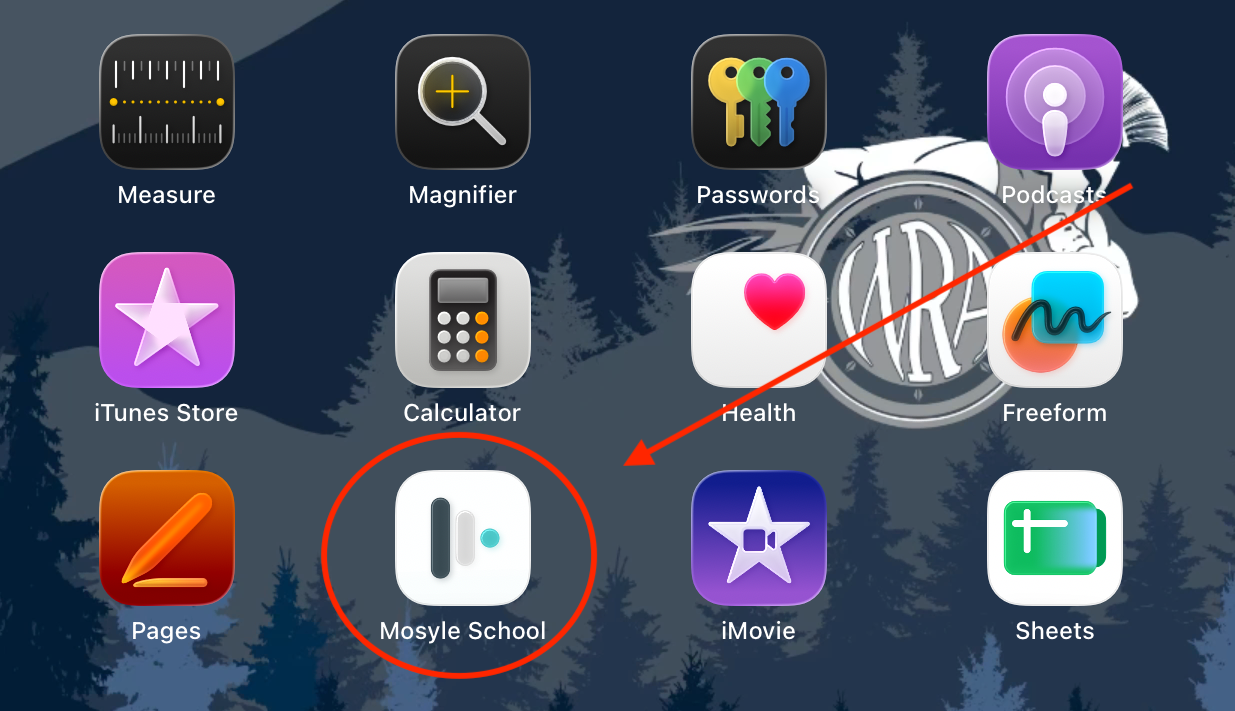
- Open the Mosyle Manager / Mosyle School app on your iPad or MacBook.
- Select Self Service.
If you are prompted to enter a password, you've gone too far. Go back and select Self Service instead.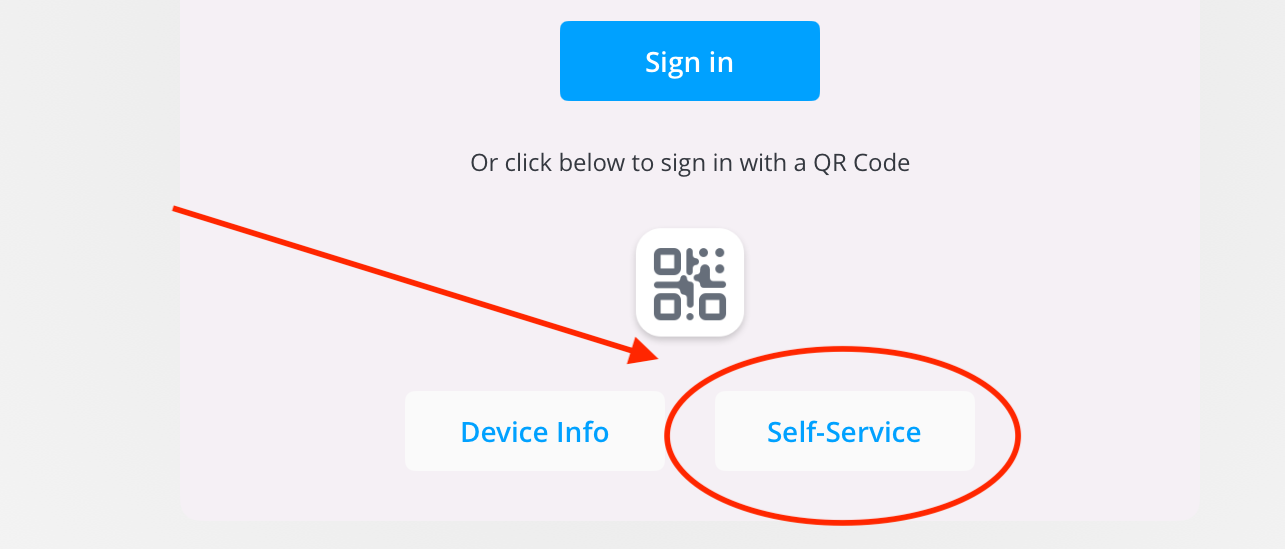
- At the top of the screen, change the dropdown menu to My Apps.
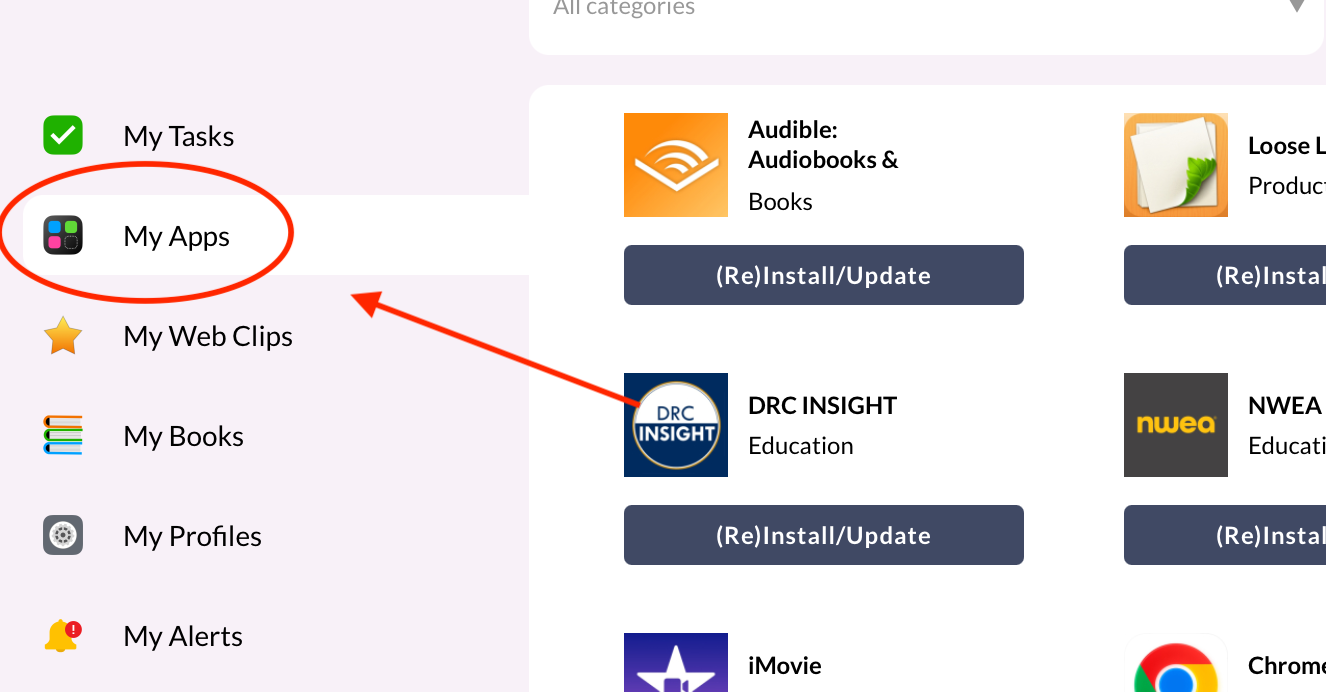
- Find the app you would like to install and select Install.
The app will download and install automatically.
Don't see the app you need?
Submit an IT support ticket and include the name of the app you'd like installed.
Was this article helpful?
That’s Great!
Thank you for your feedback
Sorry! We couldn't be helpful
Thank you for your feedback
Feedback sent
We appreciate your effort and will try to fix the article